
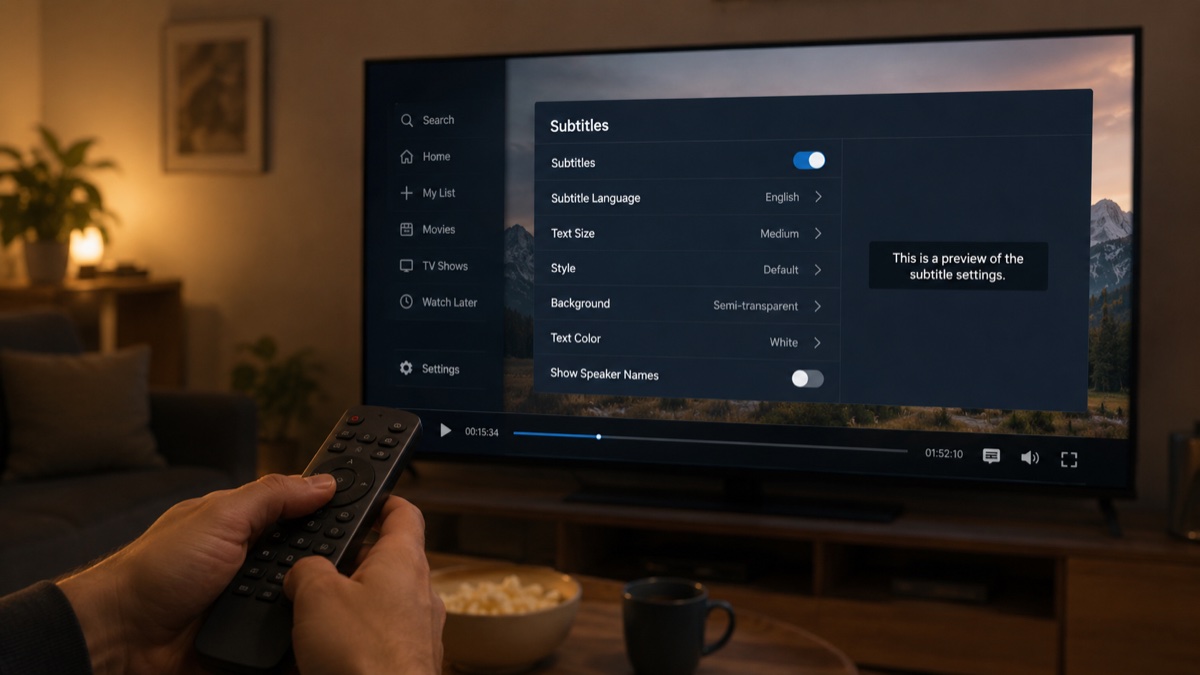
Watching with Japanese subtitles on Netflix is one of the simplest changes you can make to turn casual viewing into language practice — but the setting isn’t always obvious, and it varies by device. Here’s the short answer: on most platforms, you’ll find subtitle and audio options in the playback controls, usually behind a speech-bubble or “Audio & Subtitles” icon, where you can select Japanese for both audio and subtitles (if the title offers them).
Below are the exact steps for desktop, mobile, and smart TVs, plus what to do when Japanese doesn’t show up in the list.
Why subtitle settings matter for immersion
If you’re trying to learn Japanese with Netflix, the difference between English subtitles and Japanese subtitles is the difference between training your English reading speed and training your Japanese. With Japanese audio and Japanese subtitles on, every line you hear is also a line you can read — which means every line is also a line you can look up, study, or save for later.
This single setting change is the foundation that the rest of an immersion routine builds on.
On desktop/browser — step by step
- Open Netflix in your browser and start playing a show.
- Move your mouse to reveal the playback controls.
- Click the speech bubble icon (Audio & Subtitles) in the bottom-right of the player.
- Under Subtitles, look for “Japanese” or “Japanese [CC]” and select it.
- Under Audio, select “Japanese” if you also want the spoken dialogue in Japanese.
If “Japanese” isn’t listed under Subtitles but is listed under Audio, the title has a Japanese dub but no Japanese subtitle track — see the troubleshooting section below for what to do in that case.
On mobile (iOS/Android app) — step by step
- Open the Netflix app and start playing a show.
- Tap the screen to bring up the playback controls.
- Tap the speech bubble icon (sometimes labeled “Audio & Subtitles”) near the top or bottom-right of the screen.
- Choose “Japanese” under Subtitles, and “Japanese” under Audio if you want both.
The layout is nearly identical between iOS and Android, though Netflix occasionally tweaks the icon placement in app updates — if you don’t see it immediately, look for any icon resembling a speech bubble or the letter “A” with lines next to it.
On smart TVs / streaming devices
Smart TV apps (built into the TV) and streaming devices (like a media stick or set-top box) generally follow the same pattern, though the remote button you press to bring up the menu differs:
- Start playing a show.
- Press the down arrow or the dedicated subtitle/audio button on your remote (often labeled with a speech bubble icon) to bring up the playback overlay.
- Navigate to Audio & Subtitles using the directional pad and select it.
- Choose “Japanese” for subtitles and, optionally, for audio.
If your remote doesn’t have a dedicated subtitles button, look for the option inside the on-screen playback menu — it’s usually grouped with playback speed and episode selection.
Troubleshooting: “Japanese isn’t in my subtitle list”
If Japanese doesn’t appear as a subtitle option, a few things are worth checking:
- The title may simply not have Japanese subtitles. Subtitle tracks are licensed per title, and not every show that has Japanese audio also has Japanese captions — this is especially common for non-Japanese shows dubbed into Japanese.
- Try a different title. Japanese-produced anime and dramas are much more likely to include Japanese subtitles than international shows. If a specific show is missing them, a similar show from the same genre often has them.
- Check for a regional catalog difference. Netflix’s available subtitle tracks can vary slightly depending on your account’s region, even for the same title.
- Restart the app or refresh the page. Occasionally, subtitle options fail to load correctly on first playback and reappear after restarting the episode.
If none of these work for a particular show, it’s usually faster to pick a different title from our list of the best Japanese shows on Netflix for learners, organized by JLPT level, than to keep troubleshooting one that simply doesn’t have the track.
Bonus: pairing subtitles with KIKUGO for instant explanations
Once Japanese subtitles are on, every line of dialogue becomes something you can read — and with KIKUGO installed, every line also becomes something you can click. Instead of just reading along, clicking a subtitle gives you an instant explanation of the sentence, right in the video player, which you can save for later review in Anki.
In other words, turning on Japanese subtitles is the prerequisite; KIKUGO is what turns those subtitles into active learning material. If you want the full picture of how that workflow goes from a subtitle line to a flashcard, see From Netflix to Anki: Build a Japanese Sentence Deck While You Watch.
Ready to make your subtitles clickable? Install KIKUGO and try it on the next show you turn on.
FAQ
Why don’t I see Japanese subtitles on some shows? Subtitle availability is set per title by the content licensor, not by Netflix as a whole. Japanese-produced anime and dramas are far more likely to include Japanese subtitles than foreign shows simply dubbed into Japanese. If a title doesn’t have them, try a different show — many popular anime do include Japanese captions.
Can I watch with Japanese audio and English subtitles at the same time? Yes — audio language and subtitle language are set independently in Netflix’s playback settings. This combination is a popular middle ground: you train your ear with Japanese audio while following the plot in English. Just be aware that English subtitles are often a looser translation, not a word-for-word match of the Japanese audio.
Does this work on the Netflix mobile app? Yes. The iOS and Android apps have the same audio and subtitle controls, accessible via a dedicated button during playback. The exact icon (a speech bubble or “A” icon) varies slightly by app version, but the settings menu it opens is the same.
Why do Netflix’s Japanese subtitles sometimes differ from the spoken audio? For anime in particular, Japanese subtitles are sometimes transcribed for accessibility (for Deaf and hard-of-hearing viewers) rather than as a literal transcript, so they can include extra context or slightly different phrasing than what’s spoken. This is normal and still useful for learners — it just means the subtitle and audio won’t always match word-for-word.
Can I use dual (Japanese + English) subtitles? Netflix’s native player doesn’t support showing two subtitle tracks at once. Some third-party browser extensions add this feature for the web player. If dual subtitles are important to your routine, look for an extension built specifically for that — separate from the explanation/flashcard workflow that tools like KIKUGO focus on.