
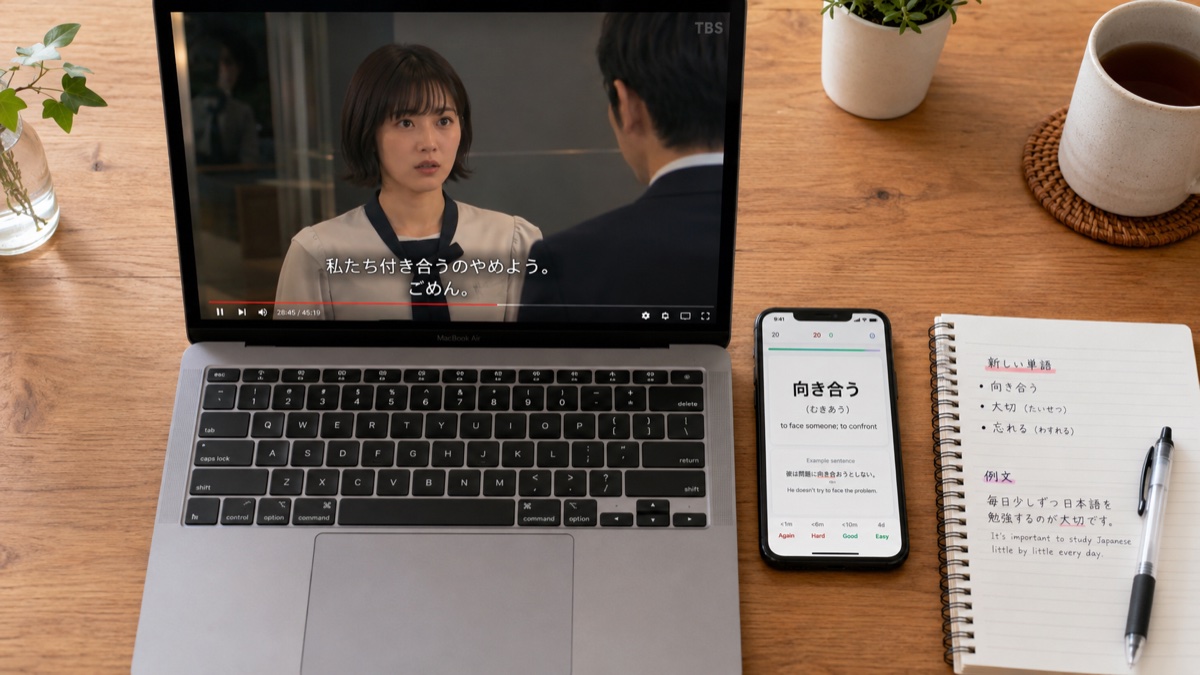
If you’ve read our guide on how to learn Japanese with Netflix, you already know that watching alone isn’t enough — you need a way to capture the lines you almost understood and review them later. This tutorial shows you exactly how to go from Netflix Japanese subtitles to an Anki deck, using KIKUGO, in about the time it takes to watch a single episode.
By the end, you’ll have a small deck of flashcards built entirely from a show you wanted to watch anyway, ready to import into Anki and review in just a few minutes a day.
What you need (2 minutes setup)
Before you start watching, make sure you have:
- Google Chrome (or a Chromium-based browser) — KIKUGO is a browser extension.
- A Netflix account with a show that has Japanese audio and, ideally, Japanese subtitles.
- The KIKUGO extension, installed from the Chrome Web Store.
- Anki (free, available for desktop, iOS, and Android) — you’ll only need this at the export step, so it’s fine to install it later.
That’s it. There’s no account setup, no configuration of dictionaries or grammar databases — KIKUGO is designed to work the moment you open a show. If you’re already using another tool like Language Reactor, Migaku, or Yomitan and wondering how KIKUGO fits alongside them, our tool comparison guide covers that.
Step 1 — Install KIKUGO and open a show
Install KIKUGO from the Chrome Web Store, then open Netflix and start any Japanese-language show. If you’re not sure which titles work best for your level, our guide to the best Japanese shows on Netflix by JLPT level is a good place to start.
Once your show is playing with Japanese subtitles on, you’ll notice the subtitle lines become interactive — this is KIKUGO running in the background, ready for you to click.
If Japanese subtitles aren’t showing up, check our step-by-step guide to enabling Japanese subtitles on Netflix for desktop, mobile, and TV instructions.
Step 2 — Click any subtitle to get an instant explanation
This is the core of the workflow. As you watch, you’ll naturally hit lines where you understand most of a sentence but get stuck on one word, one grammar pattern, or a phrase that goes by too fast to parse.
When that happens:
- Pause the video (or don’t — KIKUGO works either way).
- Click the subtitle line directly in the video player.
- KIKUGO shows you a breakdown of the sentence — meaning, grammar points, and any nuance that’s easy to miss from a plain dictionary lookup.
No switching tabs, no retyping the sentence into a separate dictionary, no losing your place in the episode. The explanation appears right where you’re already looking.
Step 3 — Save the sentence to your deck
If the explanation taught you something worth remembering — a new word, a grammar pattern, a casual expression — save it with one click. KIKUGO adds the full sentence, its explanation, and a reference to the show it came from to your personal deck.
A good rule of thumb for what makes a card worth saving: if you had to think about it, even briefly, it’s worth saving. If you understood it instantly, skip it — your deck stays focused on your actual gaps, not on things you already know.
Over a single 20-minute episode, most learners naturally save somewhere between 5 and 15 sentences this way, without it ever feeling like “studying.”
Step 4 — Export to Anki (CSV)
When you’re ready to review — at the end of an episode, or once you’ve built up a decent batch — open KIKUGO’s deck view and export your saved sentences as a CSV file.
To bring them into Anki:
- Open Anki and go to File → Import.
- Select the CSV file KIKUGO exported.
- Map the columns — typically the Japanese sentence on the front, and the explanation/translation on the back.
- Choose (or create) a deck, such as “Netflix Sentences,” and confirm the import.
The first time, this takes a couple of minutes to set up the column mapping. After that, Anki remembers your settings, so future imports are a matter of seconds.
Step 5 — Build a daily review habit
This is the step that actually produces results. A deck full of unreviewed cards doesn’t teach you anything — the value comes from spaced repetition, reviewing each card at increasing intervals so the sentence moves into long-term memory.
A simple, sustainable routine:
- Review your Anki deck for 10-15 minutes, ideally at the same time each day (after breakfast, before bed — whatever sticks).
- Watch one episode, clicking and saving 5-15 new sentences with KIKUGO.
- Import the new batch into Anki before your next review session.
This loop — watch, mine, review — is the engine behind effective sentence mining. Each cycle takes the friction out of the step that normally causes people to give up: turning something you noticed into something you’ll actually see again.
Tips: cards per session and what makes a good card
A few practical notes from learners who’ve been running this workflow for a while:
- Don’t mine everything. If a whole scene is above your level, it’s okay to just watch it for enjoyment and mine from an easier scene later. Mining every single unfamiliar word turns a fun episode into homework.
- Prefer short, complete sentences over long, complex ones. A short sentence with one new grammar point is easier to internalize than a long sentence with three.
- Keep the source context. KIKUGO attaches the sentence and explanation together, which means when you review the card later, you’re not just seeing an isolated word — you’re recalling the scene, which makes the review faster and more memorable.
- Cap your daily new cards. If your “to review” pile keeps growing, dial back how many new sentences you mine per episode until your reviews catch up.
Ready to build your first deck?
The whole loop — watch, click, save, export, review — takes less effort than it sounds, and after a week or two it becomes second nature. If you haven’t installed the extension yet, get KIKUGO for Chrome and try it on the next episode of whatever you’re already watching.
FAQ
Do I need an Anki account to use KIKUGO? No. KIKUGO works independently of Anki — it saves the sentences you click directly to your own deck inside the extension. Anki itself is free, open-source software you install separately, and you only need it when you’re ready to export and start reviewing.
Can I export my KIKUGO cards directly to Anki? Yes. KIKUGO exports your saved sentences as a CSV file, which Anki’s built-in importer reads directly. You can map the columns (front, back, example sentence) once and reuse the same import settings every time you export a new batch.
How many new cards per day is reasonable? For most learners, 10-20 new cards per day is sustainable alongside reviews of older cards. If you’re just starting out, even 5 a day from a single episode is enough to build momentum — the habit of reviewing daily matters more than the volume.
Does this work with the Netflix mobile app? KIKUGO is a Chrome extension, so it works with Netflix in Chrome on desktop. For mobile viewing, you can still build your deck by watching the same episode later in a desktop browser, or by noting timestamps of lines you want to mine and revisiting them with KIKUGO.
What if I don’t fully understand the explanation KIKUGO gives me? That’s normal, especially with advanced grammar or idiomatic phrases. Save the sentence anyway — seeing it again during spaced review, alongside the explanation, is often enough for it to click the second or third time. You can also rewatch the scene for extra context.